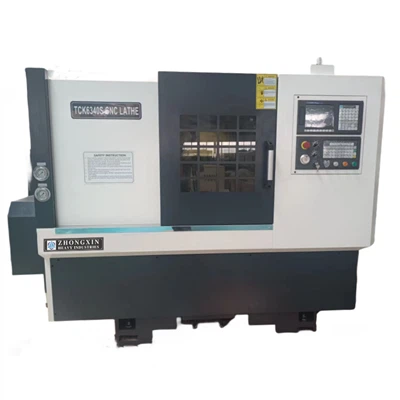
Hey there! As a supplier of the Ck6130 CNC Lathe, I often get asked about how to transfer programs from a computer to this nifty machine. It's not as complicated as it might seem at first glance, and I'm here to walk you through the whole process.
First off, let's talk a bit about the Ck6130 CNC Lathe. It's a powerful and precise machine that can handle a wide range of turning operations. Whether you're working on small parts or larger pieces, this lathe can get the job done with high accuracy. If you're in the market for a high - quality CNC lathe, you might want to check out our Precision CNC Lathe and Precision CNC Lathe options. We also have the Slant Bed Cnc Lathe Machine, which offers some unique advantages in terms of stability and chip management.
Now, let's get into the nitty - gritty of program transfer. There are a few different methods you can use, and I'll cover the most common ones here.


Method 1: Using a USB Flash Drive
This is probably the easiest and most straightforward method. Here's how you do it:
Step 1: Prepare Your Program on the Computer
First, you need to have your CNC program ready on your computer. You can create the program using CAD/CAM software. Once the program is finished, save it in a format that the Ck6130 can understand. Usually, CNC lathes support common text - based formats like G - code. Make sure to double - check the file extension and that it's compatible with the lathe.
Step 2: Transfer the Program to the USB Flash Drive
Insert your USB flash drive into your computer. Then, simply copy the CNC program file from your computer's hard drive to the USB drive. You can do this by right - clicking on the file, selecting "Copy", then navigating to the USB drive and right - clicking again and selecting "Paste".
Step 3: Insert the USB Flash Drive into the CNC Lathe
Locate the USB port on the Ck6130 CNC Lathe. It's usually near the control panel. Carefully insert the USB flash drive into the port. Make sure it's inserted correctly; otherwise, it might not be recognized.
Step 4: Load the Program on the Lathe
Once the USB drive is inserted, turn on the lathe and access the control panel. Look for an option like "File Management" or "Program Loading". Navigate to the USB drive in the file explorer on the lathe's control panel. Find the program file you copied earlier and select it. Then, choose the option to load the program into the lathe's memory.
Method 2: Using a Serial Communication Cable
This method is a bit more technical but can be useful if you need to transfer programs regularly or if you have a large number of programs to transfer.
Step 1: Check the Communication Settings
Both your computer and the Ck6130 CNC Lathe need to have compatible communication settings. On your computer, you'll need to use a serial communication software. Programs like HyperTerminal (available on Windows) or PuTTY can be used for this purpose. Set the baud rate, data bits, stop bits, and parity settings on your computer's serial communication software to match those of the lathe. You can find the lathe's communication settings in its user manual.
Step 2: Connect the Serial Communication Cable
Connect one end of the serial communication cable to the serial port on your computer and the other end to the corresponding serial port on the Ck6130 CNC Lathe. Make sure the cable is securely connected to avoid any communication errors.
Step 3: Transfer the Program
Open the CNC program file on your computer. In the serial communication software, select the option to send the file. On the lathe's control panel, select the option to receive a program via serial communication. The software on your computer will then start sending the program file to the lathe, and the lathe will receive and store it in its memory.
Method 3: Using a Network Connection
If your Ck6130 CNC Lathe is connected to a local network, you can transfer programs over the network.
Step 1: Set Up the Network Connection
Configure the network settings on the lathe to connect to your local network. This might involve setting an IP address, subnet mask, and gateway. On your computer, make sure it's also connected to the same network.
Step 2: Share the Program Folder on the Computer
Create a shared folder on your computer where you store your CNC programs. Right - click on the folder, select "Properties", and then go to the "Sharing" tab. Set up the sharing permissions so that the lathe can access the folder.
Step 3: Access the Shared Folder on the Lathe
On the lathe's control panel, look for an option to access the network. Navigate to the shared folder on your computer using the lathe's file explorer. Find the program file you want to transfer and select it to load it into the lathe's memory.
Troubleshooting
Sometimes, things don't go as smoothly as planned. Here are some common issues and how to fix them:
The USB Drive is Not Recognized
- Check if the USB drive is formatted correctly. The lathe might only support certain file systems like FAT32.
- Try using a different USB drive to see if the problem is with the drive itself.
- Make sure the USB port on the lathe is clean and free of debris.
Communication Errors with the Serial Cable
- Double - check the communication settings on both the computer and the lathe. Even a small mismatch can cause communication errors.
- Inspect the serial cable for any damage. A broken cable can prevent proper communication.
- Try restarting both the computer and the lathe to reset the communication settings.
Network Connection Issues
- Check if the lathe and the computer are on the same network. You can try pinging the lathe's IP address from your computer to see if there's a connection.
- Make sure the sharing permissions on the computer's shared folder are set up correctly.
In conclusion, transferring programs from a computer to the Ck6130 CNC Lathe is not too difficult once you understand the different methods and how to troubleshoot any issues that might arise. Whether you choose to use a USB flash drive, a serial communication cable, or a network connection, each method has its own advantages.
If you're interested in purchasing a Ck6130 CNC Lathe or need more information about program transfer or any other aspect of our products, don't hesitate to reach out. We're here to help you make the most of your CNC machining experience.
References
- CNC Lathe User Manuals
- CAD/CAM Software Documentation